Turn an Ebook Cover into a Full-Wrap Print Cover
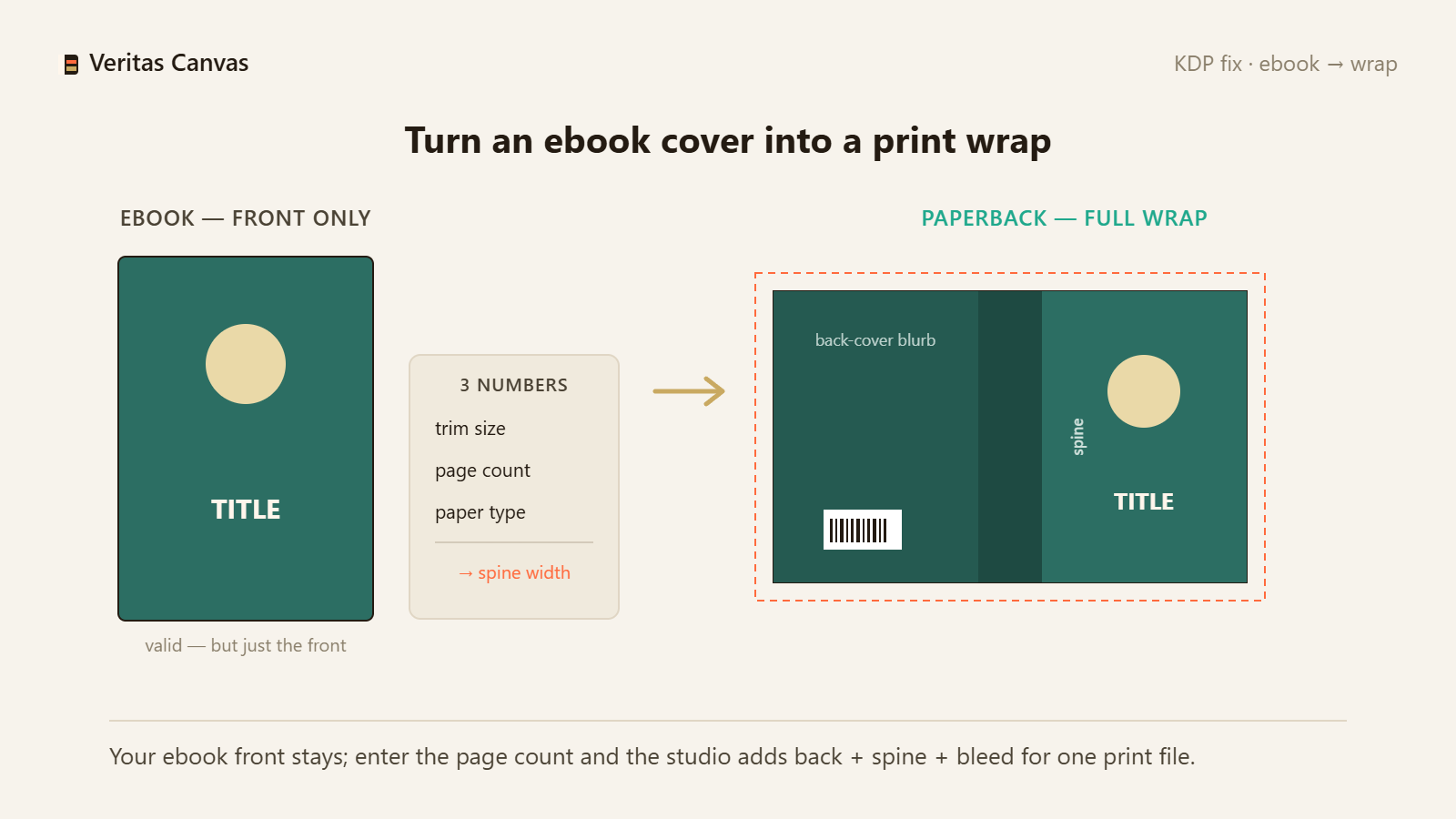
An ebook cover is the front only; a paperback cover is the back, spine and front joined as one piece. The conversion needs just three numbers: trim size, page count and paper type. From those you get the spine width and full-wrap size; you seat the front-cover image in that frame and complete the back and spine.
1. Upload your front cover
Drop the ebook front cover (JPG/PNG) as the background of a canvas set to your correct KDP trim size. The studio suggests a matching back-cover and spine background drawn from the front-cover colors.
2. Enter the page count, build the spine
Switch to full-wrap and enter your page count. The spine width is calculated automatically from the paper type; if the spine is 0.25 in or more, the title and author appear on it by themselves. Bleed and safe zone are in place.
3. Write the back cover, export at 300 DPI
Add a short blurb and series line to the back cover; the barcode zone stays clear. Export the print-ready full-wrap PDF at 300 DPI — back + spine + front in one file, ready to upload to KDP.
Can I upload my ebook cover straight to print?
No. An ebook cover is the front only; print needs a single full-wrap of back + spine + front. The spine width depends on your page count.
How do I find the spine width?
Spine = page count × paper thickness (white 0.002252, cream 0.0025 in/page). When you enter your page count in full-wrap mode, the studio calculates it automatically.
Does my front-cover design stay the same?
Yes. Your front-cover image is kept; only the back cover and spine are added on top. You can also rework the typography if you like.
Can I make the ebook cover here too?
Yes — in front-cover mode you can export a 1600×2560 px ebook cover as well. One studio, both formats.